17 Cloud Service
17.1 Rules
This folder is actually on a server in the cloud. Multiple people have access to it. Therefore there are some rules or this will end in confusion and chaos:
17.1.1 Main Rules
- Production is NOT RESPONSIBLE if there is a wrong file. This is being controlled by the designers of the files and not production!
- There is always only 1 version of a file. If an update is made then overwrite the file. This is not a backup folder for zombie files, you can keep them on your computer if you wish.
17.1.2 Filenames
- the filename is like on the drawing the part. No dates, no version, just the part name
- if a part has multiple files, like BTL / PNG (picture) / PDF (drawing) then the files have all the same filename but different endings.
- if a part has multiple files, like drawings, then name it part_1.png, part_2.png etc.
- never add a number in front of the filename becasue that screws up the order in the Explorer. Keeping always the same start of the filename keeps them together in the list and is easier to recognize.
17.2 Adding Project folder to the Explorer
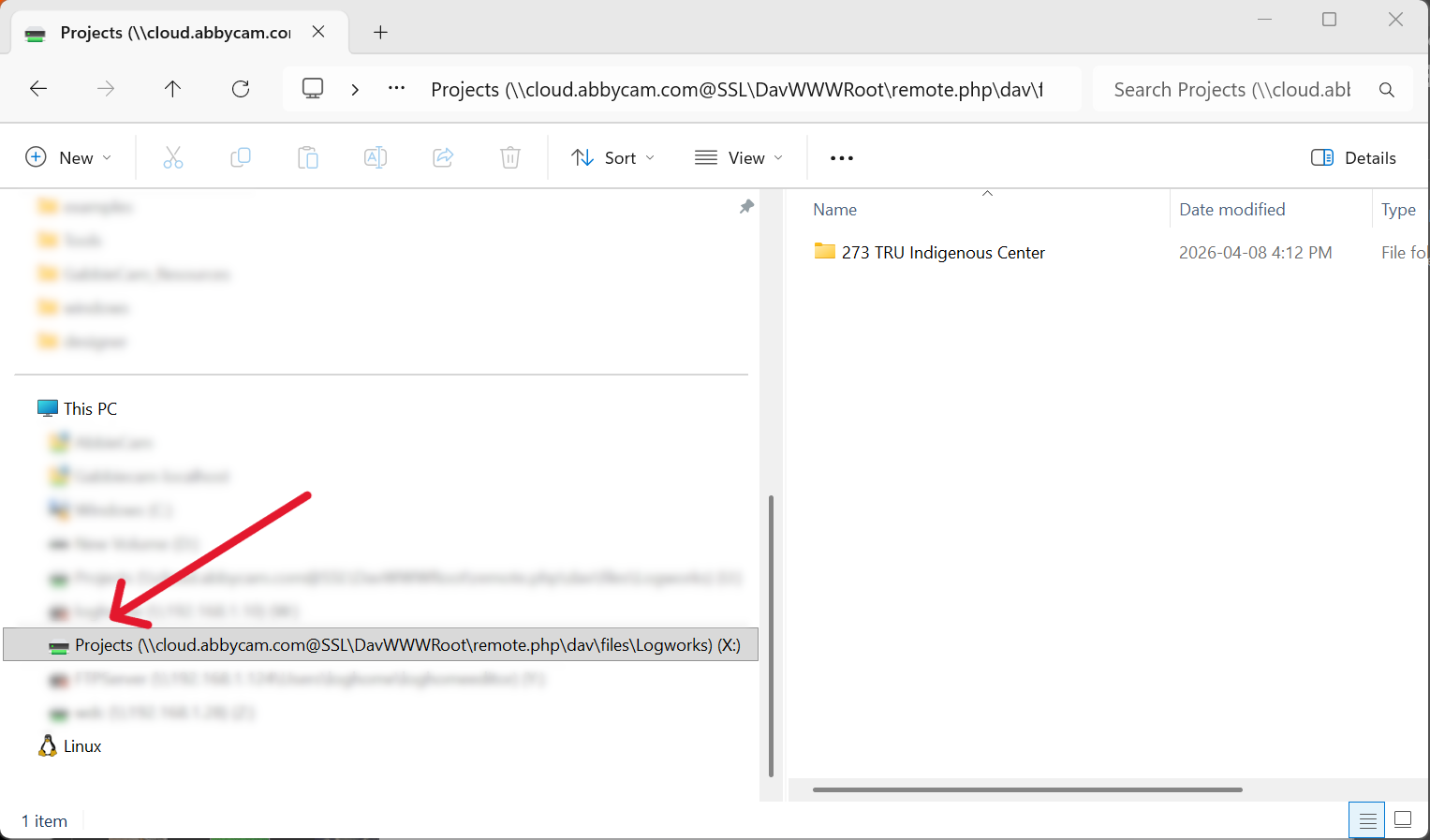
The Project folder can be added to the standard explorer as a drive. There is no other software needed, just standard Windows Explorer
17.2.1 Open Windows Explorer
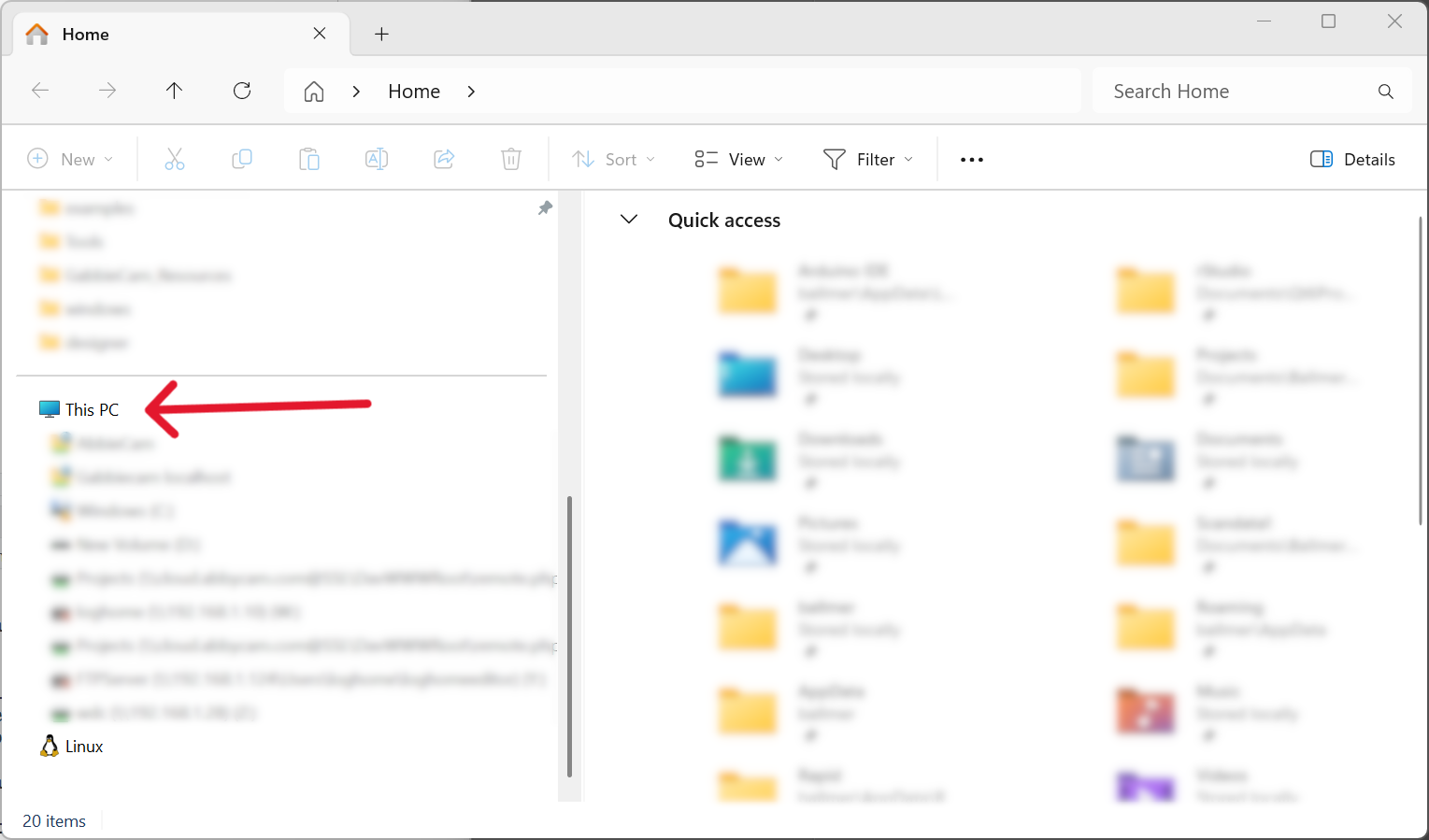
Open the standard windows Explorer and right click on “This PC”
17.2.2 Open Map Dialog
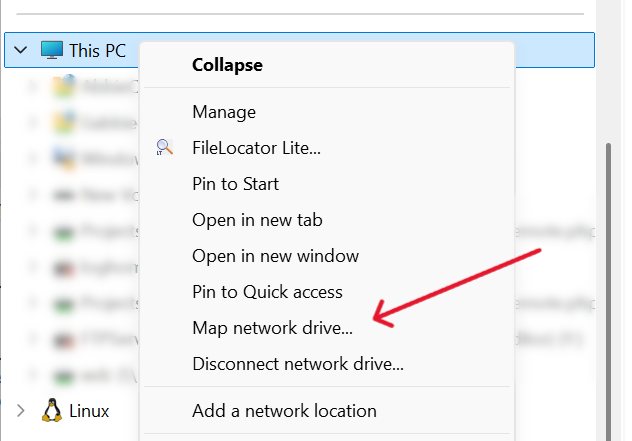
choose “Map network drive” in the popup menu
17.2.3 Map the new drive
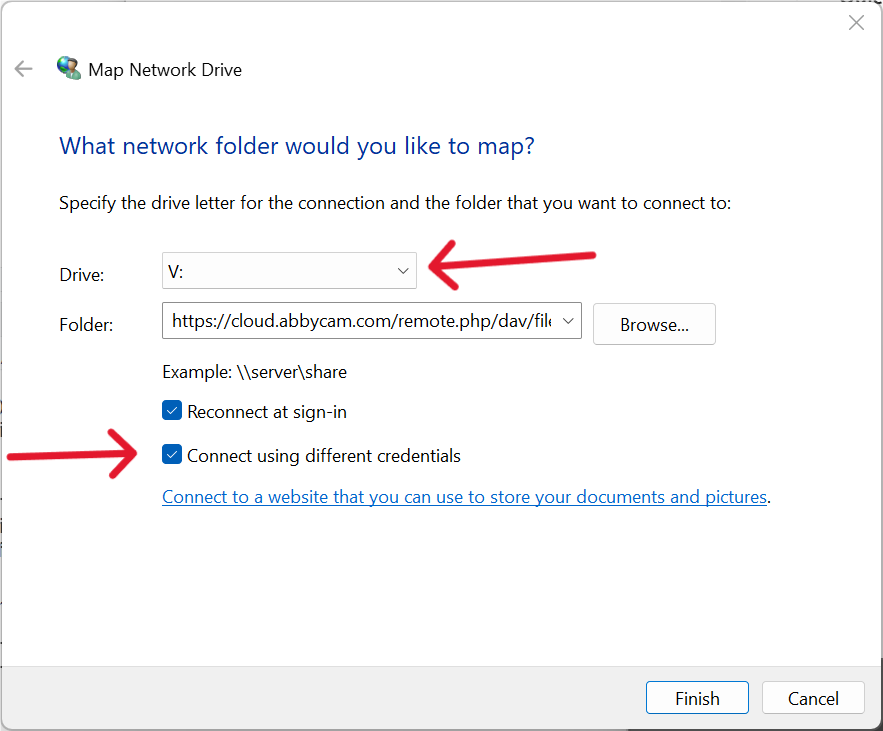
- Choose the Drive Letter you wish. It doesn’t really mater whitch one.
- add folowing line into field “Folder”: https://cloud.abbycam.com/remote.php/dav/files/Logworks/Projects
- Make sure “Connect using different credentials is clicked!
- Then click Finish
17.2.4 Enter Credentials
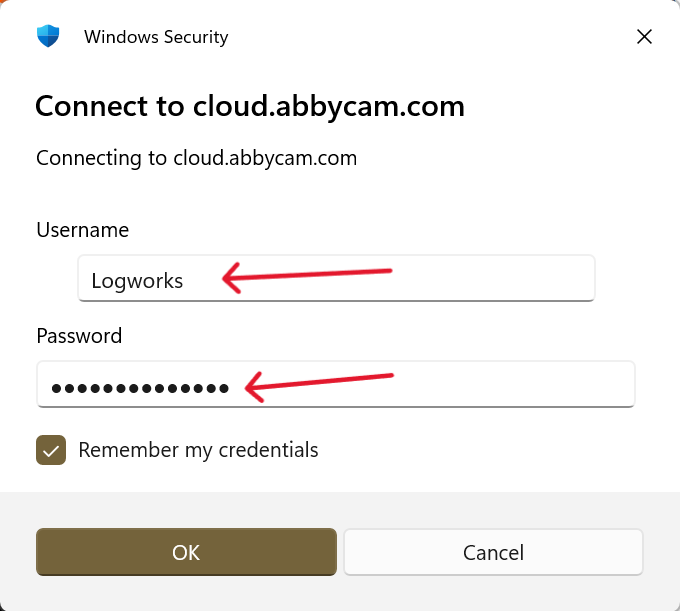
- Enter Username (Logworks) and Password (given by email)
- Click on Remember my credentials so you done’t have to enter them every time you access the Drive/Folder
17.2.5 That’s it
- You now have sucussfully added a new drive and can add and remove files like with any other drive/folder.
- That means when you export a BTLx then you can choose Projects to directly save to the cloud and it is instantly for everyone else available.
- No local safe, send by email, explaining it - nothing.
17.3 Troubleshooting
17.3.1 Webclient
check if webclient is running on your windows machine:
Win + R → services.msc
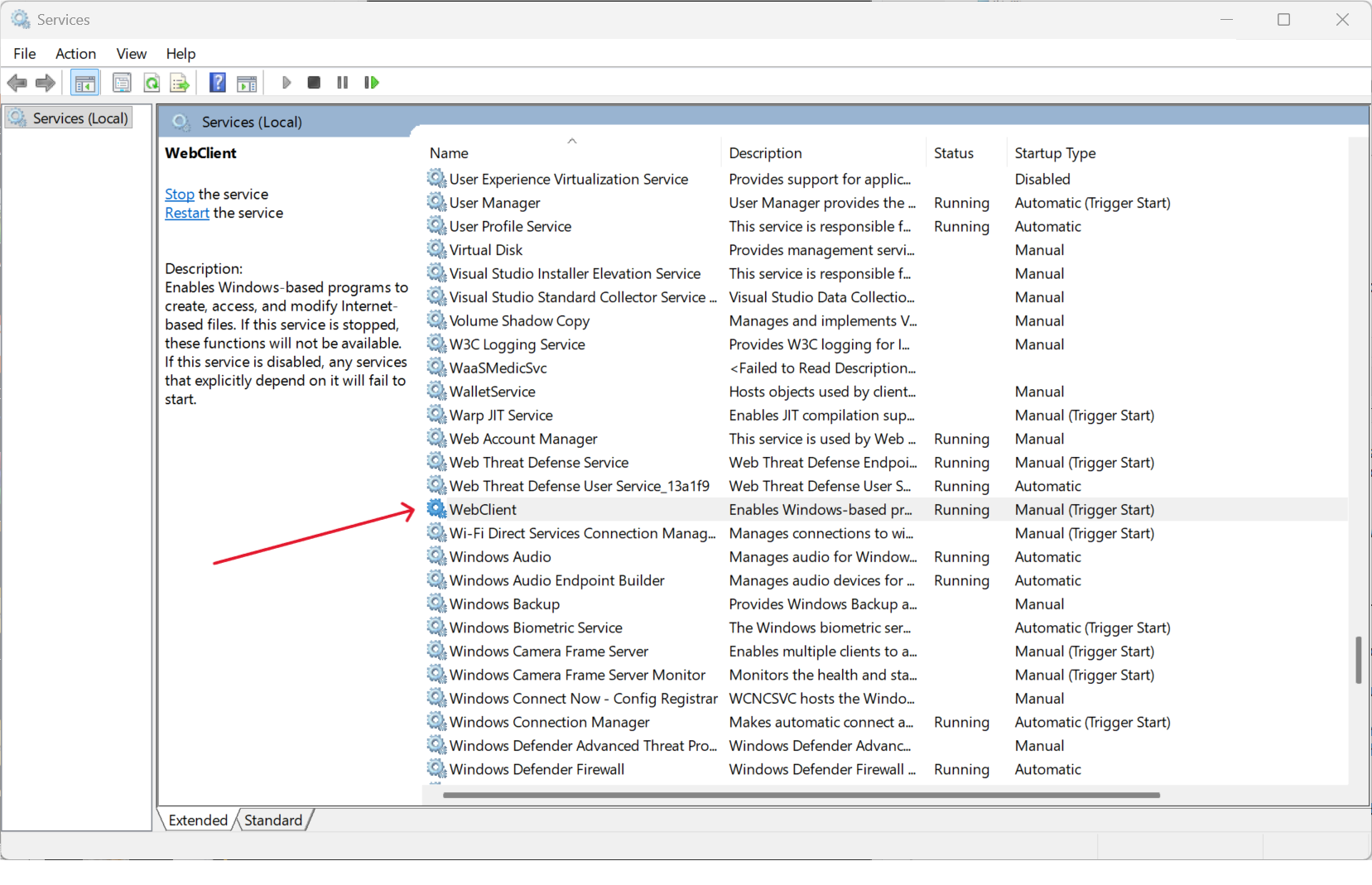
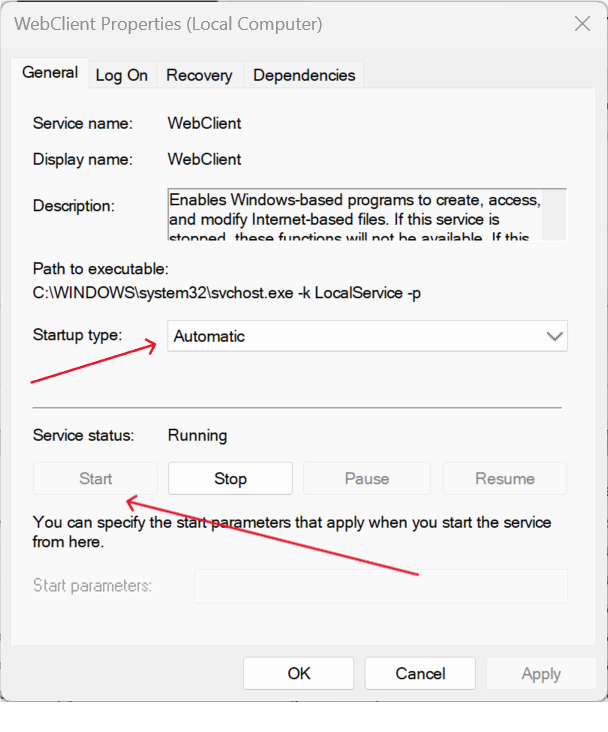
if status is not running then double click
17.3.1.1 Error on OK
If you can’t save with Startup Type automatic, use Command Prompt as Administrator:
- Set it to normal automatic (recommended) sc config WebClient start= auto